This is the full Fire TV setup, photographed on a real Firestick. It takes about five minutes. You do not need to root anything and you do not need a computer.
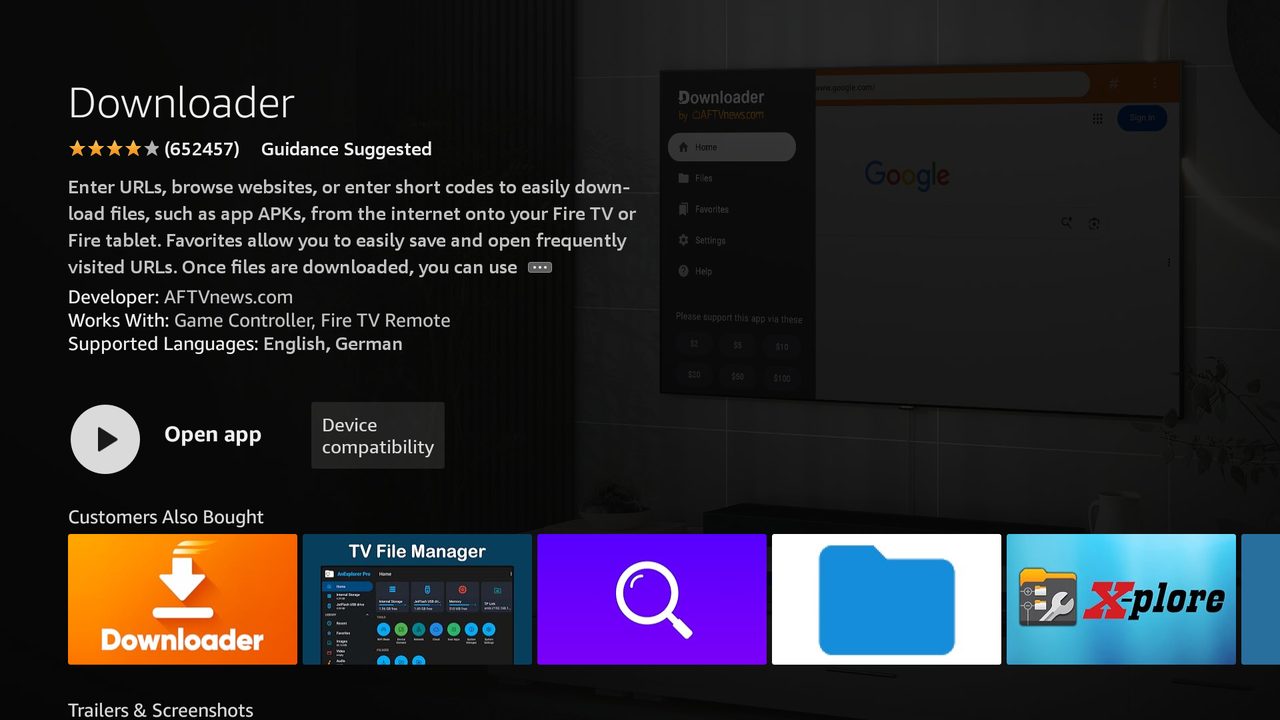
Step 1 · Install the Downloader app
From the Fire TV home screen open Find → Search, type Downloader and install the orange app by AFTVnews. It is free, and it is what brings our app onto the stick.
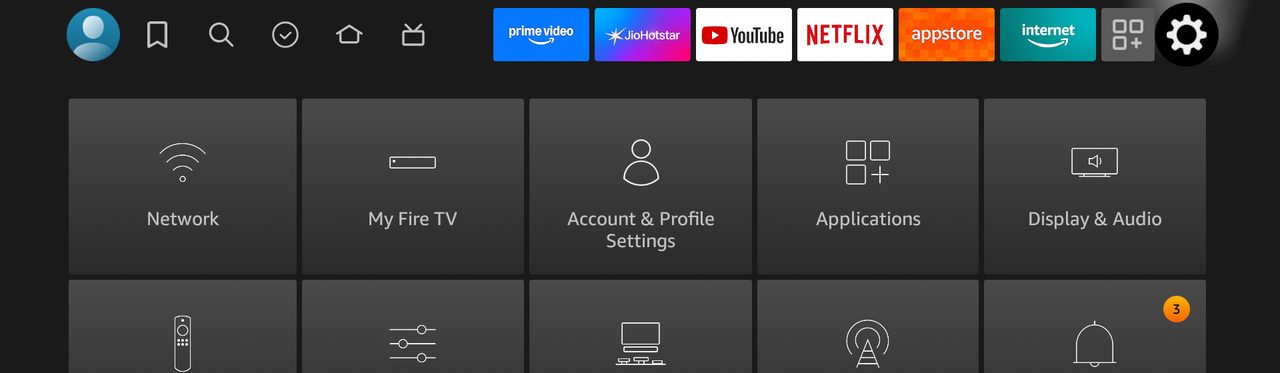
Step 2 · Allow Downloader to install apps
Open Settings (the gear at the right end of the top row) and choose My Fire TV.
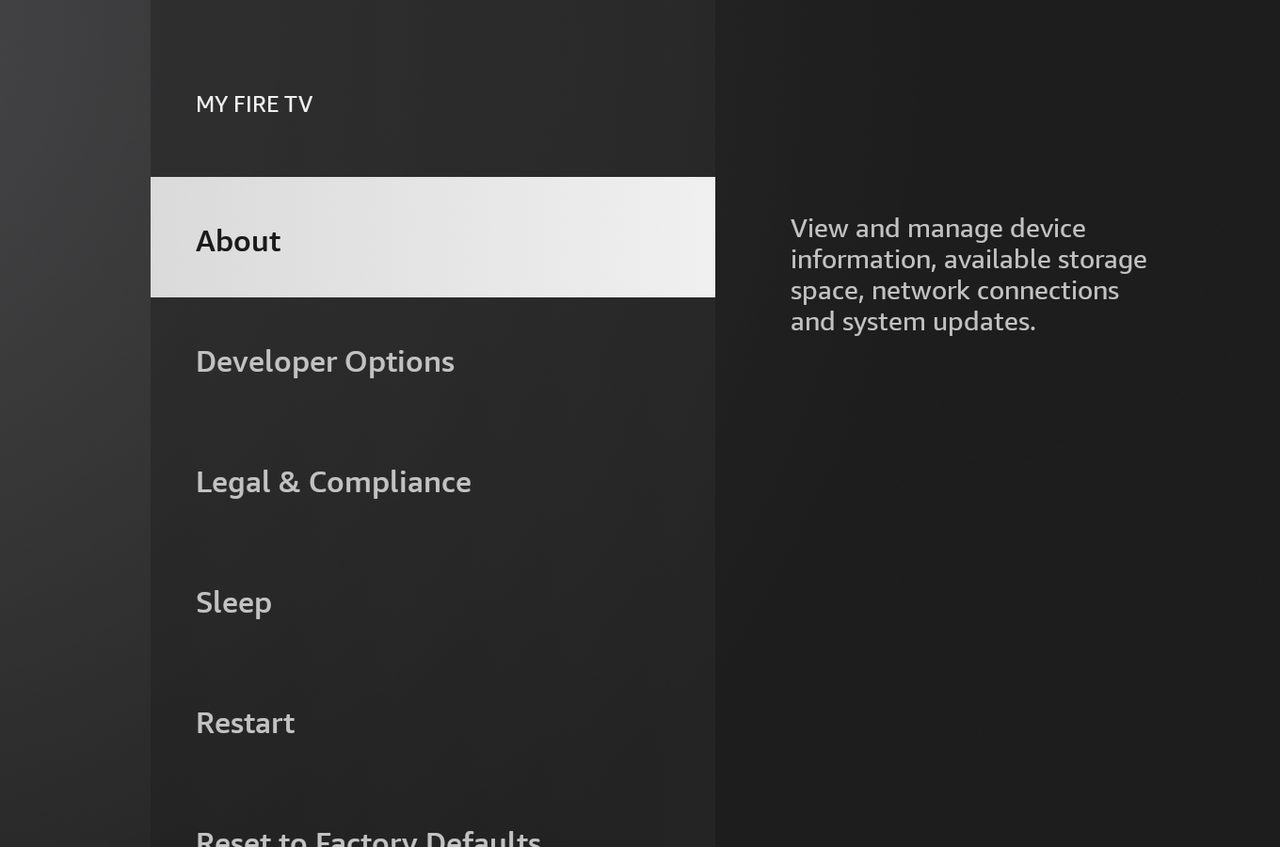
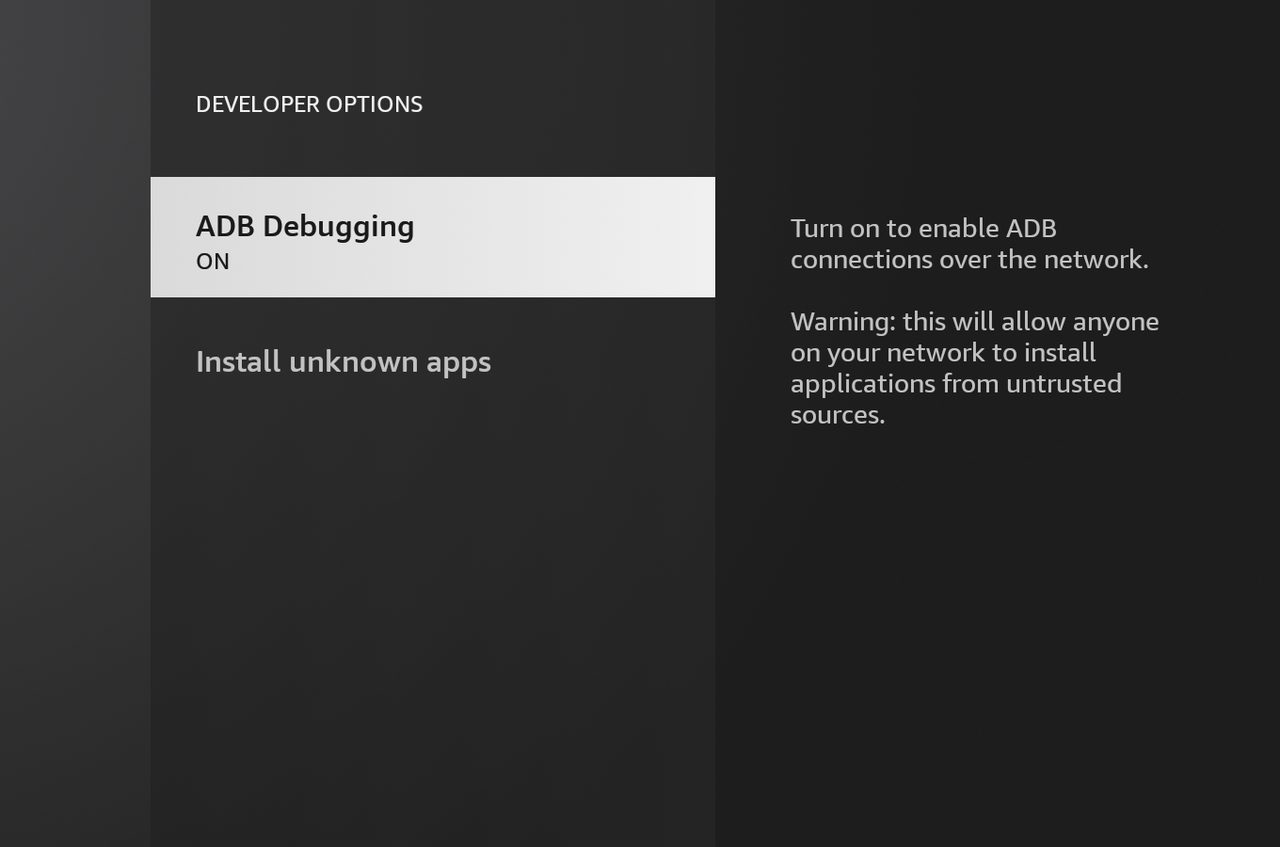
Open Developer Options. If you do not see it, open About, highlight your device name, press the select button seven times and go back.
Open Install unknown apps and switch Downloader to ON. That is the only permission needed - leave ADB debugging alone.
Step 3 · Download the Network24 app
Open Downloader, select the address box and type our code:
9134519
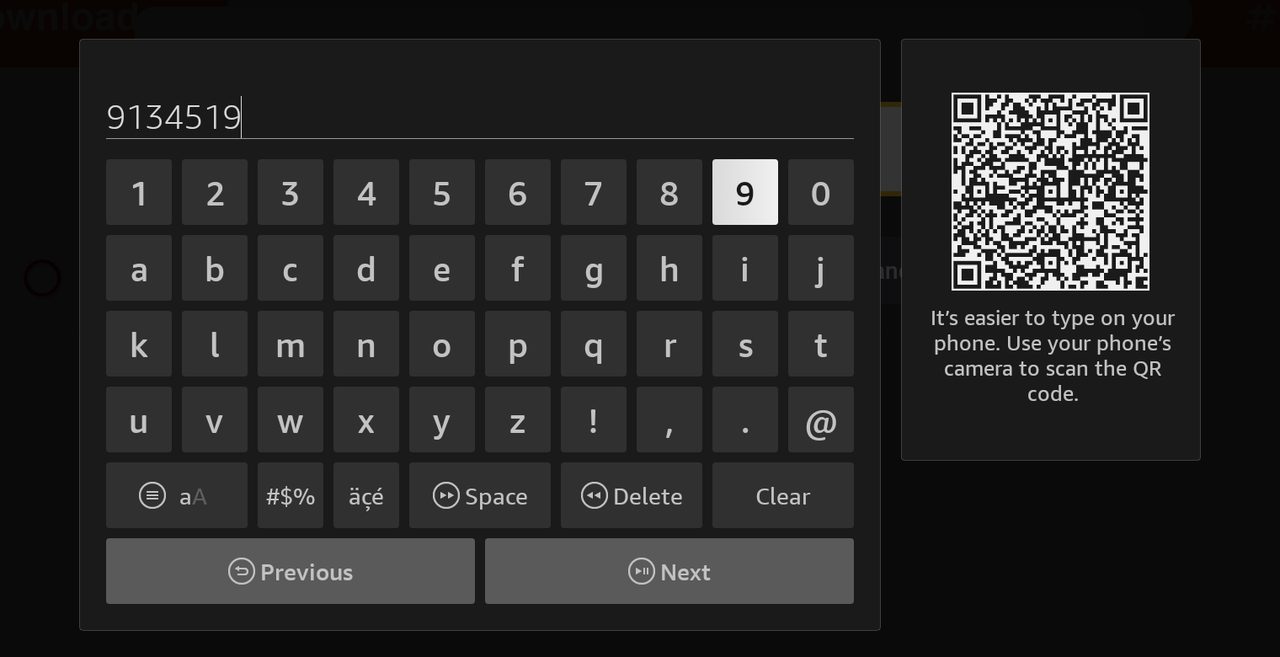
Press Go. When the download finishes choose Install, then Open. When Downloader offers to delete the installer file, say yes - the app is installed and it saves space on the stick.
Step 4 · Sign in
The app asks for a username and password. That is your TV login from My account → Watch: an 8-digit username and a short password. It is not your website password.
Step 5 · You are watching
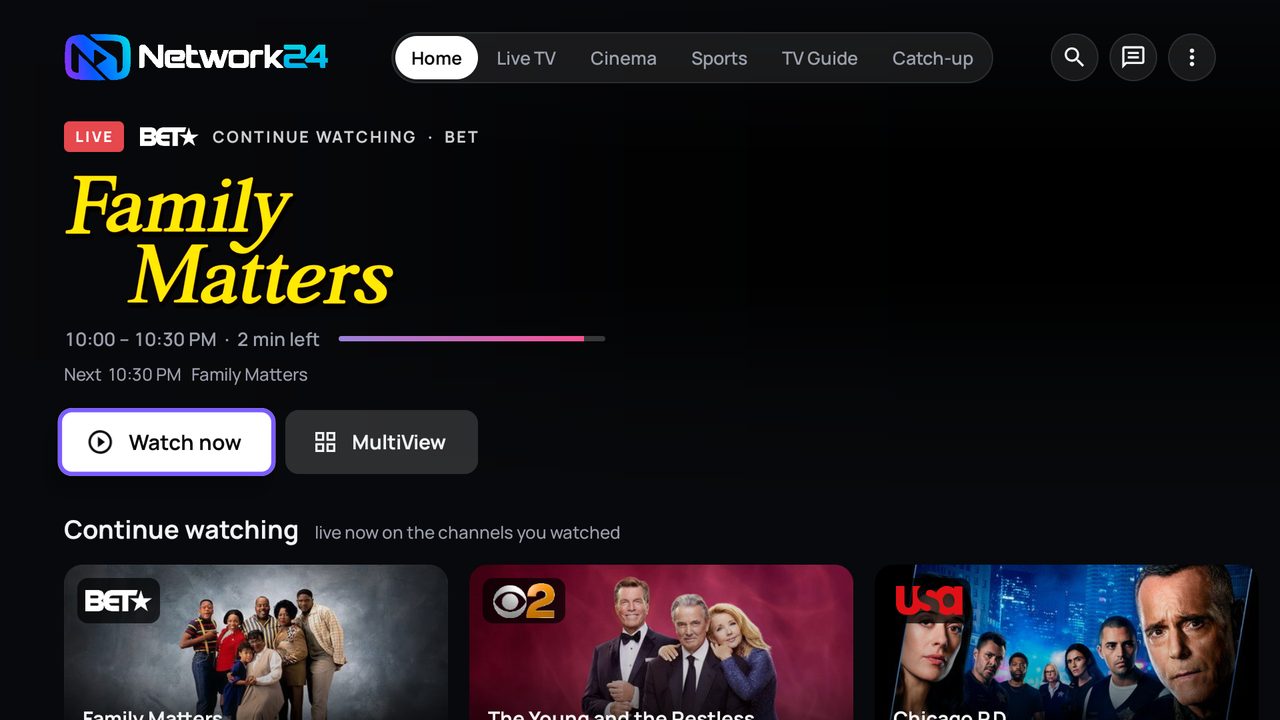
That is it. Live TV, Cinema, Sports, TV Guide and Catch-up sit in the top row, and the app remembers what you were watching.
If something does not play
- Press Fix. On a channel that buffers or stays black, open the channel menu and press Fix - our AI tests the other sources and switches you over, usually in seconds.
- Press Get help. Support sees your TV screen and can set it up with you, live.
- Restart the stick (Settings → My Fire TV → Restart) if the whole app feels slow. Fire TV sticks like a weekly restart.
- Still stuck? Open a ticket or ask in our Discord.